Turn an old desktop into a retro game station with Batocera
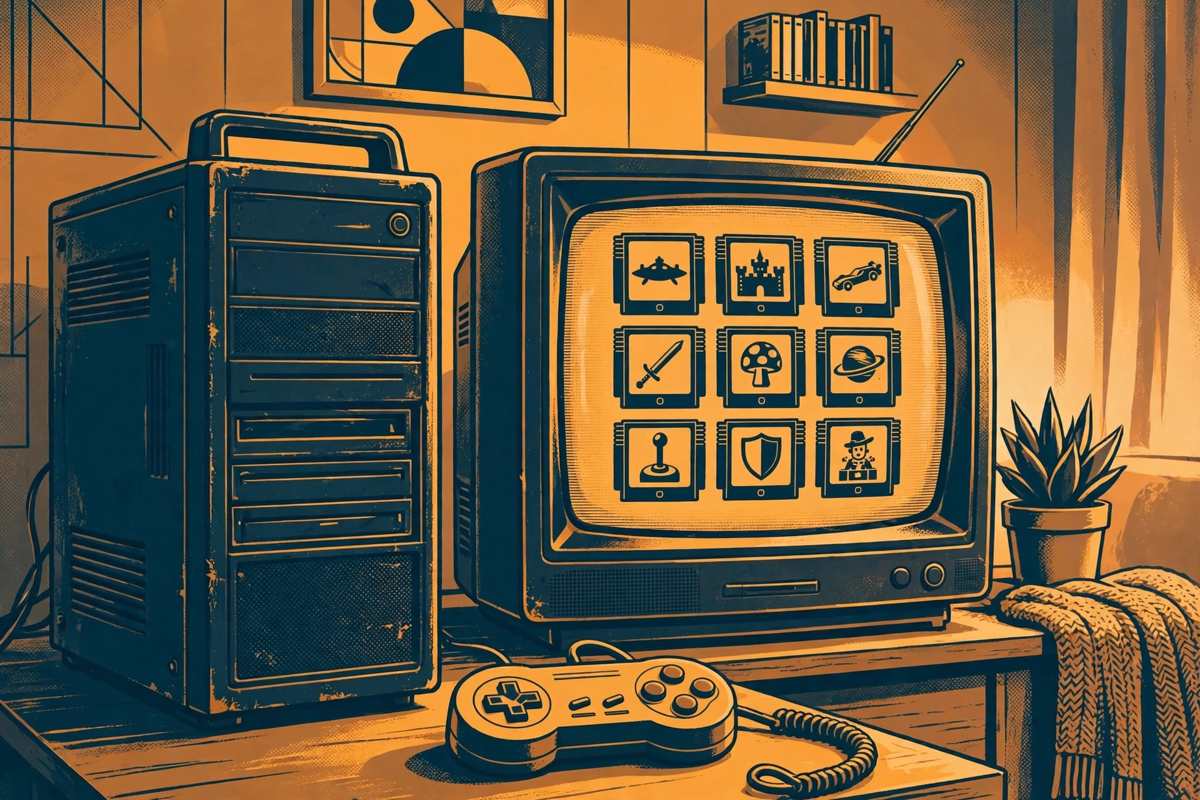
2 GB of RAM and a 64-bit processor are the Batocera wiki's own recommended floor for a desktop, and that low bar is the real story here: a desktop retired years ago for being slow at modern Windows work can still be a capable retro game station, because the workload is completely different. What decides success is not the machine's age. It is which generation of consoles you want to play, and whether the graphics hardware is supported.
Start with the hardware gate, not the download
Batocera's own documentation is blunt that minimum requirements depend on the emulator you want to run. Its bare minimum for a smoothly scrolling menu and basic gameplay is 1 GB of RAM, with 2 GB recommended, and a 64-bit processor recommended over a 32-bit one. Pretty much every computer made after 2010 is 64-bit, so most retired desktops clear that gate without spending anything.
The part to check properly is the graphics card. The wiki calls it the component that will usually make or break these systems: an unsupported card leaves the system slow and unplayable, while most GPUs, including integrated Intel and AMD graphics, are supported. For a target to aim at, the same page notes that an Intel i5 4xxx paired with an Nvidia GT1030 supports all emulators up to the PS2. Below that class of hardware, plan on the earlier generations: coverage of Batocera on old PCs consistently notes that NES, Mega Drive, and SNES titles are easy, while PS2 and GameCube titles require more processing power.
| What you want to play | Realistic old desktop | Watch out for |
|---|---|---|
| 8-bit and 16-bit consoles | Almost any post-2010 desktop with 2 GB RAM | Very old Nvidia cards may need the legacy build |
| PS1 and N64 era | A mid-range desktop from the early 2010s | Graphics support matters more than clock speed |
| PS2 and GameCube era | Around an Intel i5 4xxx with a GT1030 class GPU, per the Batocera wiki | Integrated graphics of that era may fall short |
The reversible trial: run it from USB first
The step most guides rush past is the one that makes this project low risk. Batocera can boot from a USB drive, so the old desktop's existing system never has to be wiped to find out whether the hardware is up to the job. Recent walkthroughs of exactly this conversion make the same point: run it from USB before committing to the internal storage, and use the trial to check whether your hardware suits the games you want to play.
The setup, in order
- Download an image flashing tool and the Batocera image that matches your architecture, x86_64 for most PCs.
- Pick the target drive. The install guide recommends 16 GB and above for full functionality, because smaller drives cannot download certain updates; allow extra space beyond that for your game library.
- Flash the image to the USB drive with the tool, then check the drive shows its boot files before you move on.
- Boot the old desktop from the USB drive. On a recent PC you may need to disable Secure Boot in the BIOS settings, and use the boot selection menu, usually F10 or F11, to pick the Batocera drive. UEFI is preferred where available.
- Let the first boot finish. Batocera expands its partitions automatically, and interrupting that first boot is the one mistake to avoid.
- Configure a controller, add games you own the rights to use, and play the most demanding title on your list for ten minutes.
Success looks like this: the machine boots straight into the game library, the controller works in every emulator you tried, and the heaviest game on your list holds its speed without stutter. If the trial passes, the permanent version of the same setup is a menu option away, installing Batocera onto the internal drive from inside the running system. If it fails, nothing was wiped and the desktop goes back to its previous job unchanged.
Where this route beats a Windows emulator stack
A retired desktop kept on Windows can run standalone emulators, but you maintain each one separately, configure controls per emulator, and boot through a desktop interface with a keyboard and mouse. Batocera replaces that stack with one system that boots directly into its EmulationStation front end, presents every console in one library, and applies controller mappings across its supported emulators. For a machine whose only job is games on a TV, that single-purpose shape is the point of the conversion.
One honest limit: Batocera does not supply a commercial game collection. It ships with a small selection of freely distributable games for testing, and everything else is yours to supply from games you own. Budget the USB drive or internal storage for the library, not just the system: the system itself is small, the games are not.
— Dex Carter, Tech Writer